God's Country
My contributions to God’s Country
During the development of GP4 / God’s Country, I was responsible for all Menu and UI Things. I started off by making the DeathScreen Widget blueprint where I first put a simple text with some simple Restart, and Return to Main Menu buttons. Each button of course has its own text which shows which button is which.
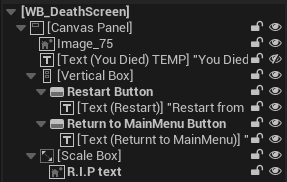
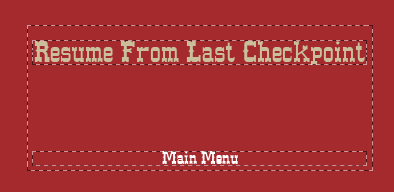
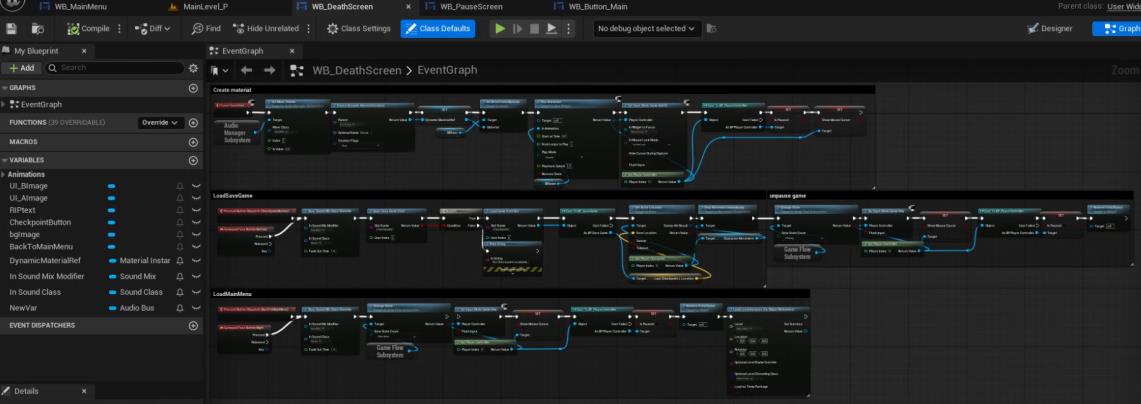
But then one of our artists made a really cool material that I used and ”animated” with some parameters to make it move once the player dies, so I disabled the ”You Died” text in the canvas and used the material instead. The DeathScreen also has a red half transparent background to really show that the player has died and lost. After the DeathScreen was basically finished I spoke with our PO, and he said that we will have a checkpoint and respawn system, so I implemented a “Resume From Last Checkpoint” button that lets you continue the game from the last checkpoint after dying. If the player has not activated a checkpoint, I also added an error message that displays something along the lines of “no checkpoint available” and the player will have to continue to the MainMenu. This system also required a button to delete the save file once it has been created, since otherwise the player would have to go into the files and find that specific save file, which can be very annoying to do every single time. From a developer’s perspective, it saves a lot of time when being able to simply delete an old save file while testing the game or debugging, so I added a “Delete save file” button in the pause menu which I will show later.
After the DeathScreen was finished, I continued with the MainMenu, which is probably the most important screen since this is what the player sees right after opening the game. I had a long talk with our PO how we wanted the main menu to function, and we wanted a nice “interactive” UI where the camera moves, first we wanted to make the camera move a lot more in different directions when the player for example presses the options button, the quit button or play button, but we ended up by just having the camera move after the player presses the Play buttons since we decided not to have an option menu since this was unnecessary for our game.
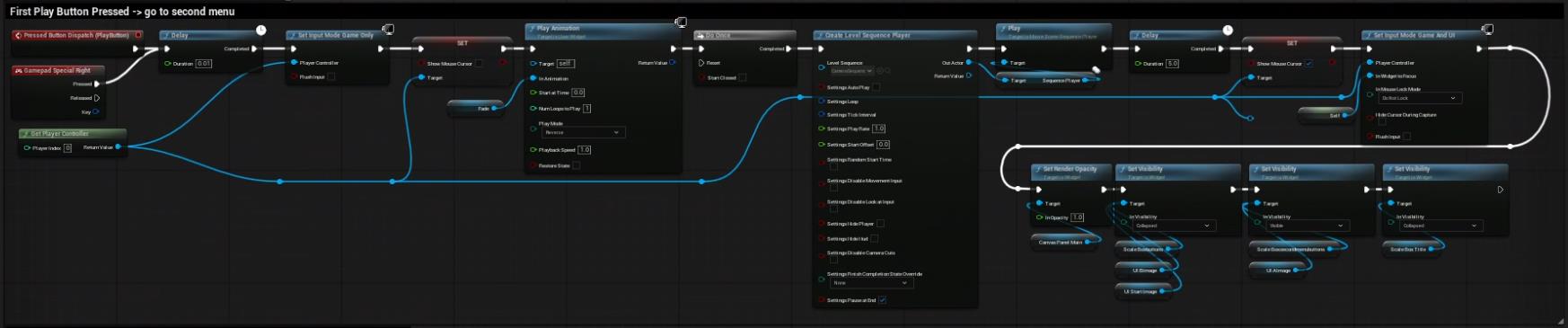
When the player then finally launches the game, they are greeted with the MainMenu, when pressing Play, the camera will smoothly move forward to a “secondary” menu. The Player Then has the option to load the game or quit. When then pressing load game, the player loads in to the actual game level and begins the game. Image of the play and load game logic in blueprint below.
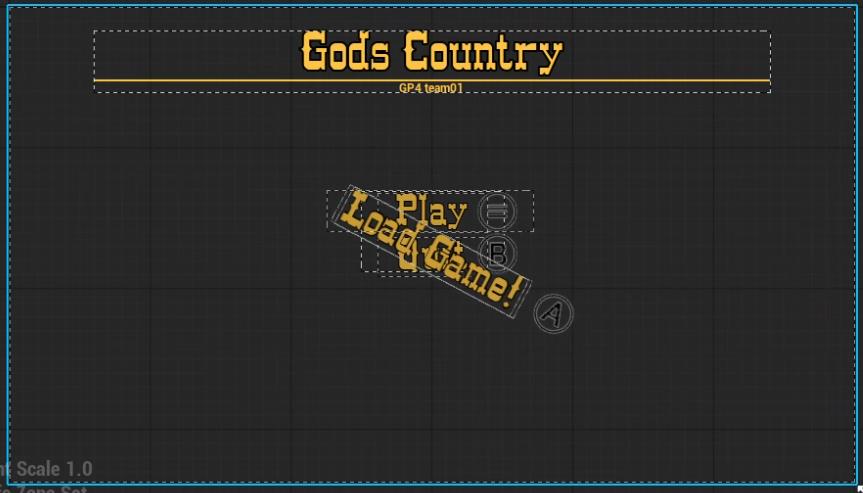
One Thing i had problems/challenges with was a thing i had to add after i was basically finished with the UI, and that was making it able for the player to navigate and press the buttons in the UI with a controller/gamepad, this was for some reason very hard to solve and i did not manage to get it working where the player could both navigate the UI with the Dpad as well as press A/X to confirm their choice and “fire” the button. So i tried many different ways to solve it and one was to make an array with all the buttons and the it would call the correct button according to what the player had highlighted with the dpad, but this was not working and hard to get working properly. So the PO and I came to the conclusion that we should just assign different buttons on the controller like A, B, X, Y, Start and Select to the different buttons in the UI, when the player then presses the corresponding button on the controller that shows in the UI it would fire that buttons logic. This is very janky and could be remade properly but we simply ran out of time.
If I had time, I would of course have remade the whole UI and menus to work properly with controller/gamepad navigation and confirmation.
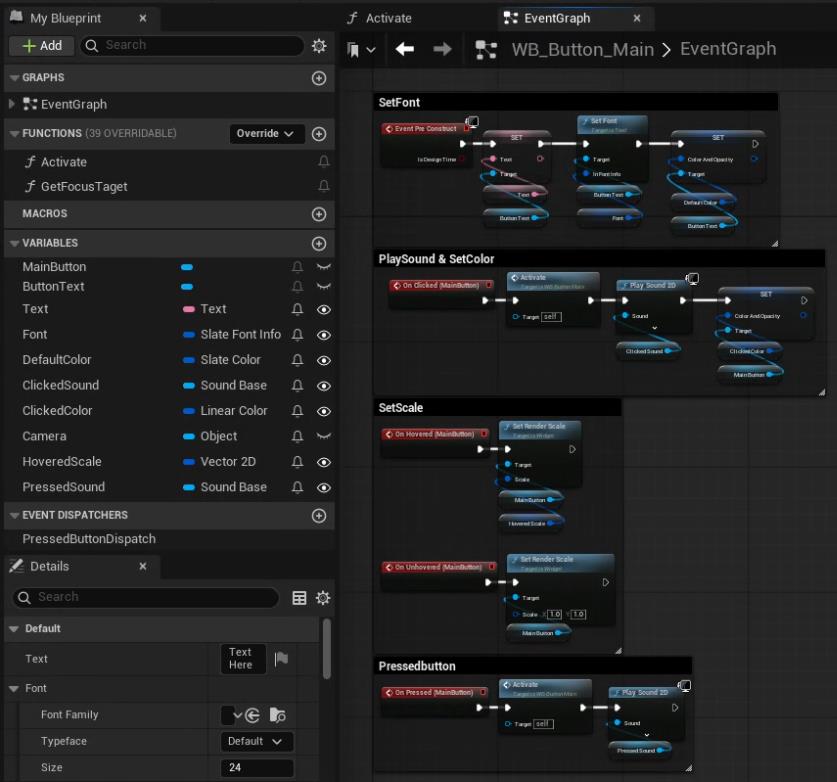
I will also attach an image of my Button logic here since I made a Button_Main Widget Blueprint which designers could just grab and use inside another widget blueprint and have a nice and already setup button to use!
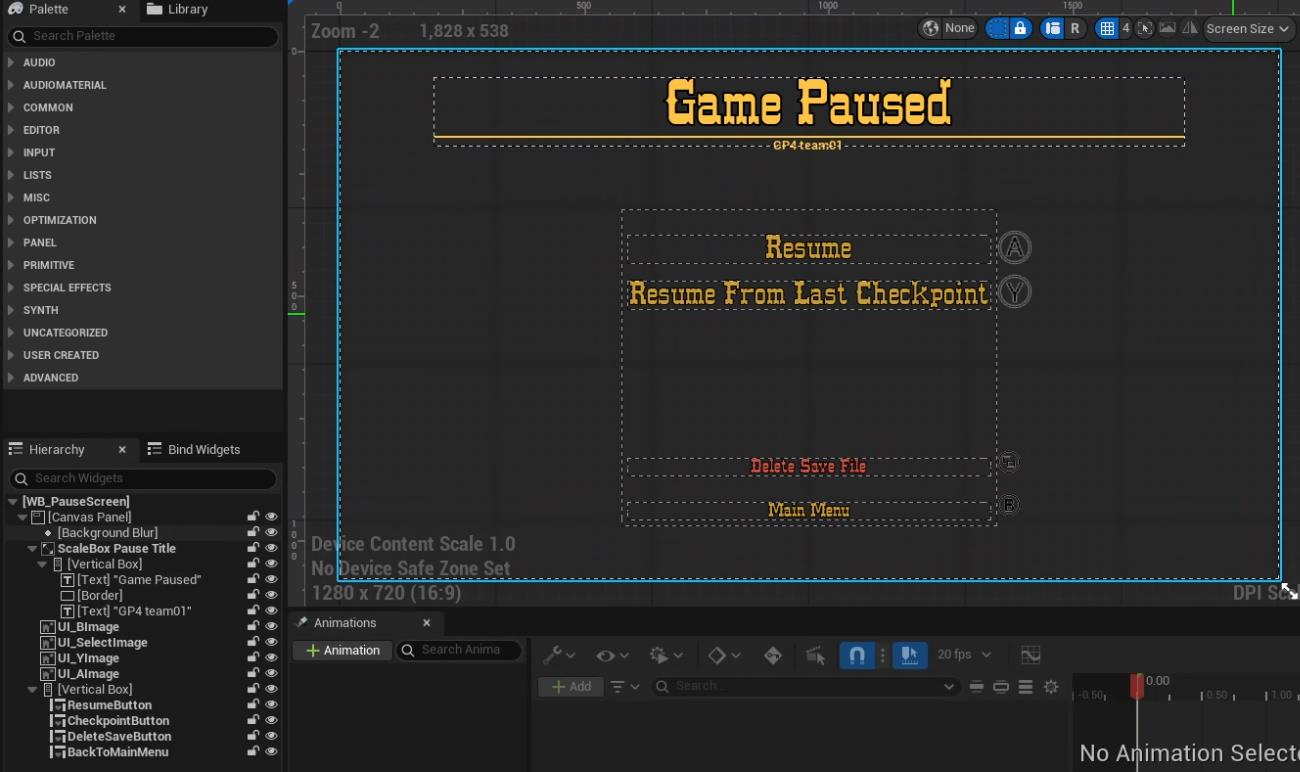
After the main menu was finished, I made the Pause Screen, where I made an input action that checks if the player presses start on gamepad/controller or “P” on the keyboard to pause the game. All of the UI and menus are set up with our state machine in our game so when the game is “paused” the state changes to the paused state which disables player input and mutes the sound of the game.
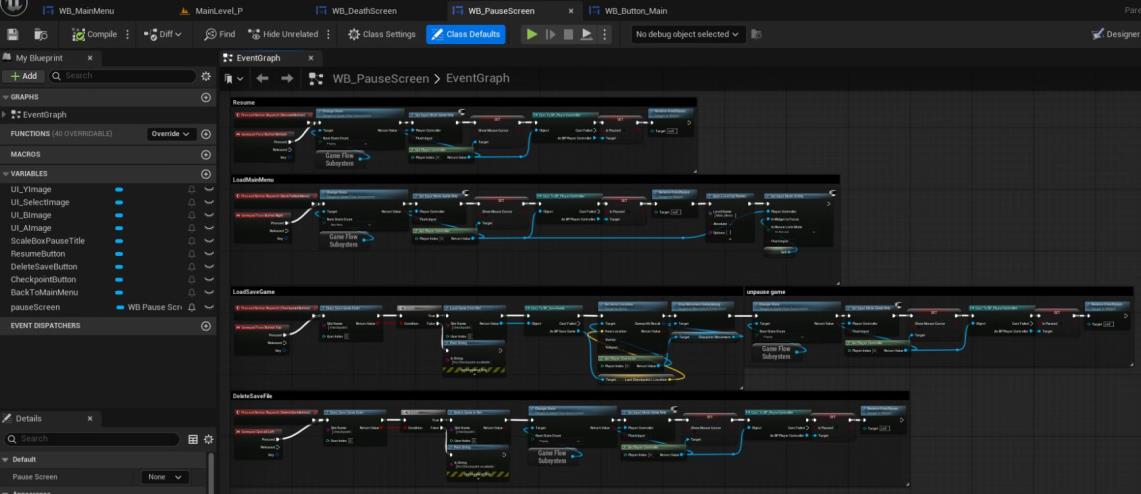
This is where I come back to the save system, here in the pause menu i added a Delete Save File button to easily delete the save file, if there is one, if there is none it will throw an error message! The background of the pause screen is a little blurred to make it look nice and smooth, and gives another hint that the game is actually paused. Here is an attached image.
To go back to the challenges i had in this project, they were the lack of knowledge about UI which i now increased of course and making the UI/Menus work with controller/gamepad correctly. The refections i have to these challenges are that i will continue to learn making nice and interactive UI/menus to keep the player engaged and i would absolutely remake the entire UI and menu system to work smoothly with both gamepad and mouse and keyboard since the way we have it now i am not incredibly satisfied with it. I would absolutely remake it if i had the time for it.
Retrospective;
Looking back at my work in GP4 / God’s Country, I’m very happy with what I made and what I learned. My main job in this project was everything related to menus and UI, like the DeathScreen, MainMenu, and PauseMenu. I didn’t have much experience with UI before, so this was a really good learning experience for me.
I started with the DeathScreen, where I first just had a simple “You Died” text and some buttons for restart and main menu. Later, one of our artists made a really nice animated material, so I replaced the text with that and made it move when the player dies. I also added a red transparent background to make it look more dramatic. When we decided to add a checkpoint system, I added a “Resume from Last Checkpoint” button, and if no checkpoint was available it showed an error message. I also added a “Delete Save File” button in the pause menu to make testing easier, which saved a lot of time.
After that, I worked on the Main Menu. This is what the player first sees when starting the game, so I wanted it to look good and feel alive. I talked a lot with our PO about how we wanted it to work. We had ideas about camera movements between buttons, but in the end we kept it simple so the camera only moves when the player presses Play. Then it smoothly moves forward to a second menu where you can load or quit the game.
The hardest part for me was making the menus work with controller input. I tried a lot of things like arrays of buttons and checking what was highlighted, but it didn’t work like I wanted. In the end, we decided to just assign different controller buttons (A, B, X, Y, Start, Select) to the different menu actions. It worked, but it was not the best solution. If I had more time, I would remake the whole menu system to work properly with controller navigation.
The PauseMenu was the last thing I made. You can open it with the Start button or “P” on the keyboard. It changes the game to a paused state, disables player input, and mutes the sound. The background is blurred to make it clear that the game is paused, and it also has the “Delete Save File” button.
Overall, I’m proud of my work but also see what I can do better. I learned a lot about Unreal’s UI system and how to make menus look and feel better. In the future, I want to focus more on making everything work smoothly with both keyboard and controller.
As for teamwork, I followed our team contract and worked the hours we agreed on. I usually came in early to start working and stayed focused. Even though some people were absent sometimes, we handled it well and finished the project nicely.
-Jamie
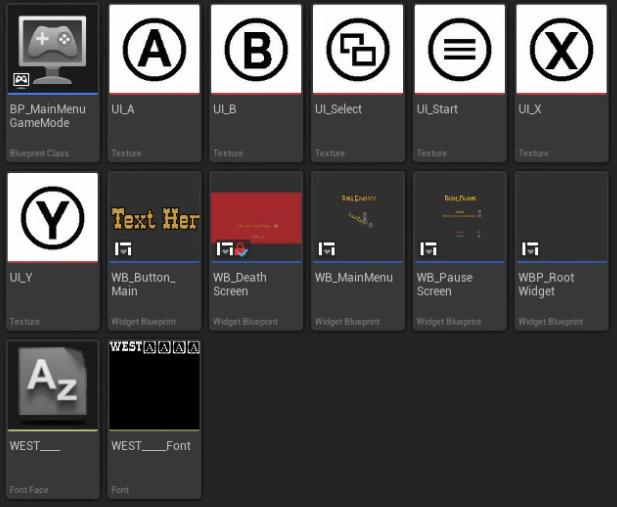
Here are additional Images!
Check out God’s Country here: God’s Country on Itch